Introduction:
Learn how to login to 360 Monitoring by Plesk for the first time and configuring Single Sign-On (SSO) with this informative guide. This walkthrough will provide you with step-by-step instructions, ensuring a smooth setup process for seamless monitoring of your online presence.

Approximately 15 Minute Process
Step-by-Step Guide
1. Login to Plesk via your Zeniar Portal (Learn How)
2. Ensure you are on the Dashboard of your account
3. A new widget has been added to simplify managing your 360 Monitoring account
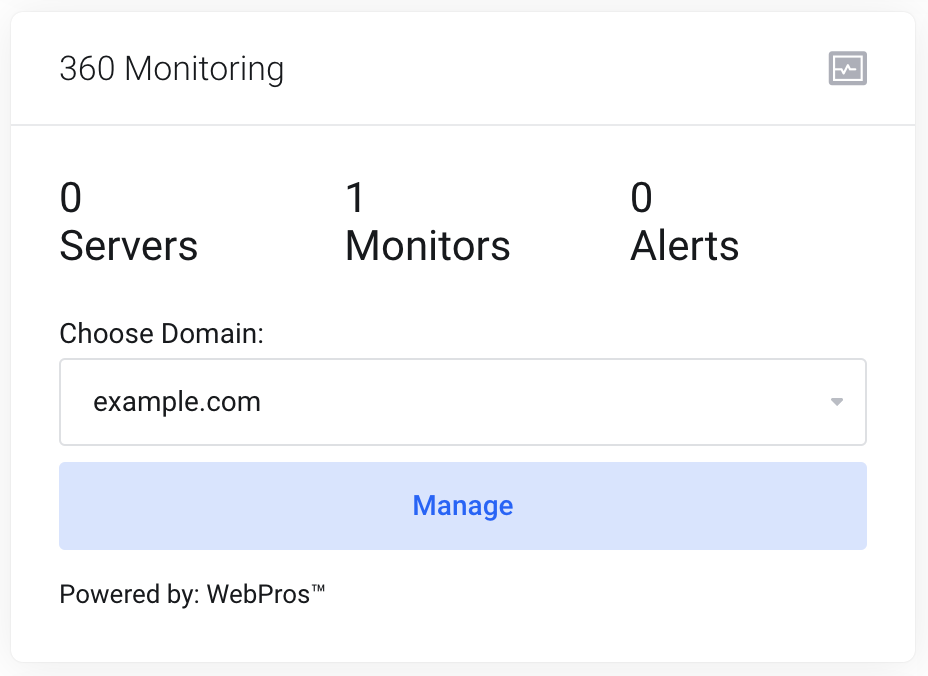
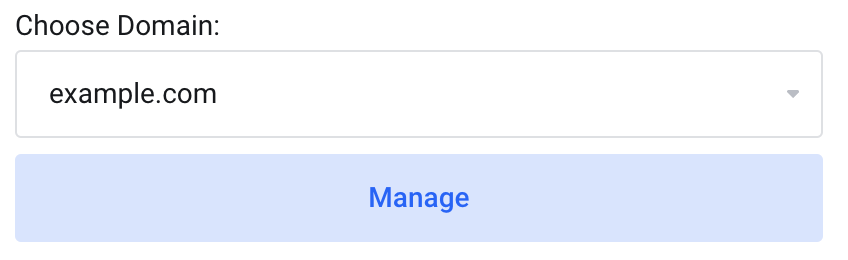
4. Select your domain and click Manage
 A new window will open for the 360 Monitoring portal, ensure your browser does not block the popup window
5. For security reasons, you will need to enter your email address and create a random password
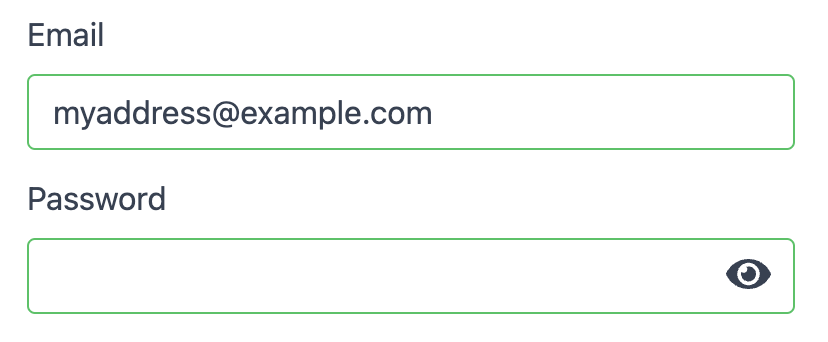
6. Once complete, click on the Save password button
From this point on, your Zeniar portal account will login automatically to the dashboard via Single Sign On (SSO)
7. You will now be logged into the Dashboard
Require additional assistance?
Our dedicated Australian support team is ready to help. Reach out to us via email at support@zeniar.com or by submitting a support ticket through your Zeniar Portal.