Introduction:
Learn how to configure your mail app on your Samsung device to seamlessly work with your email accounts set up in Plesk. This guide will provide you with step-by-step instructions, ensuring that you can easily access and manage your emails on your devices.
Approximately 10 Minute Process
Step-by-Step Guide
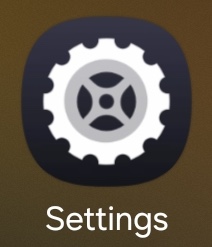
1. Open the Settings app on your device

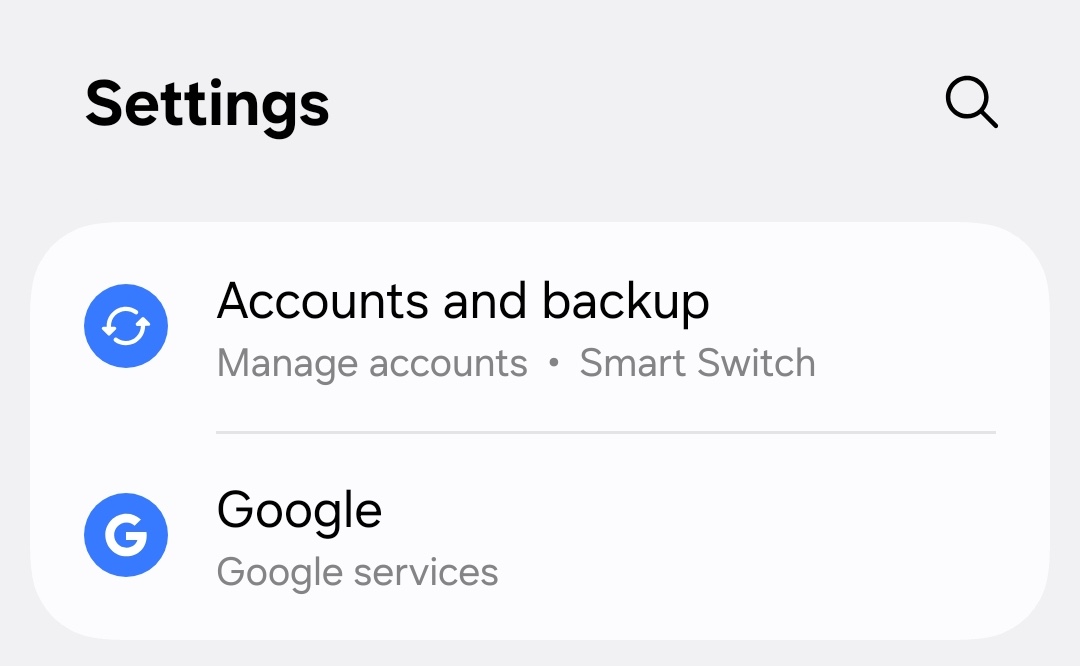
2. Tap on Accounts and backup
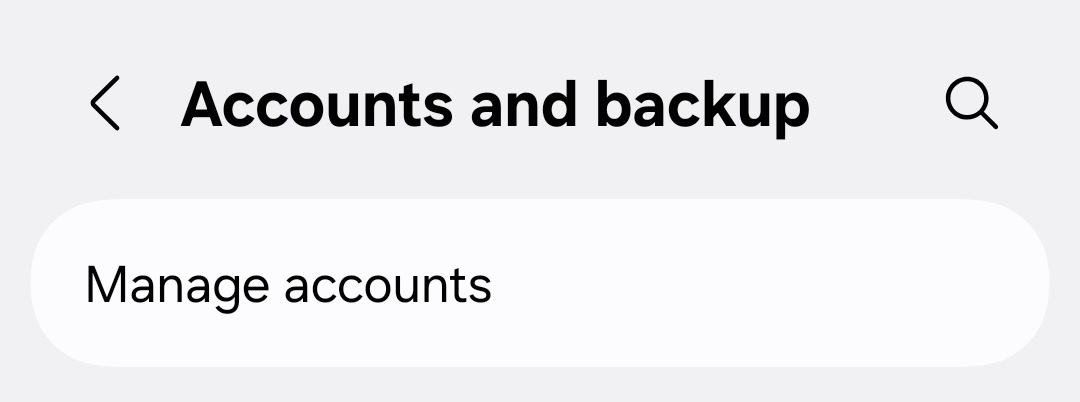
3. Tap Manage accounts
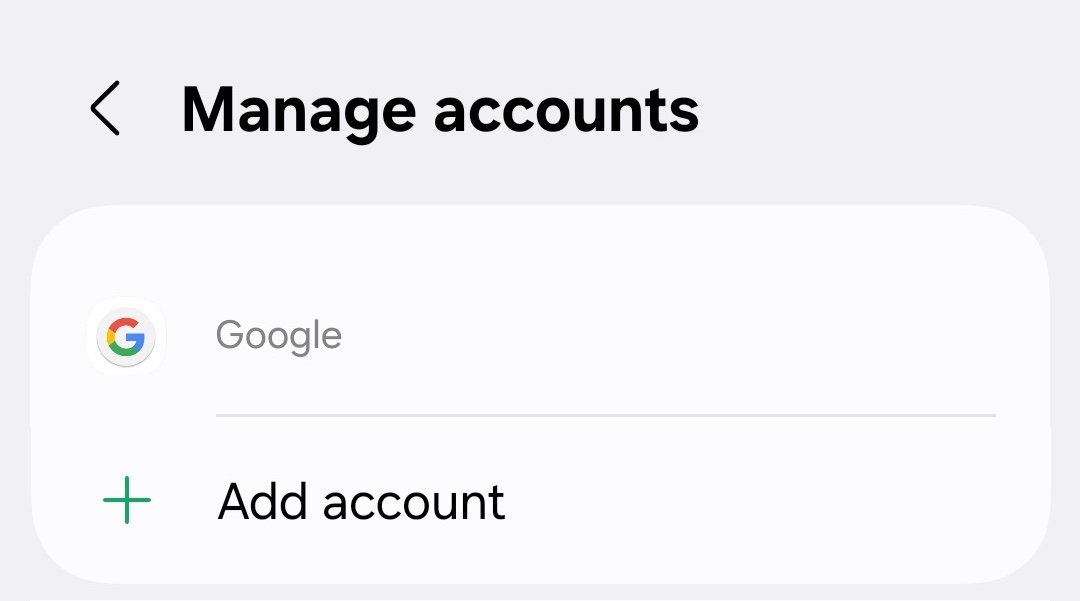
4. Tap + Add account
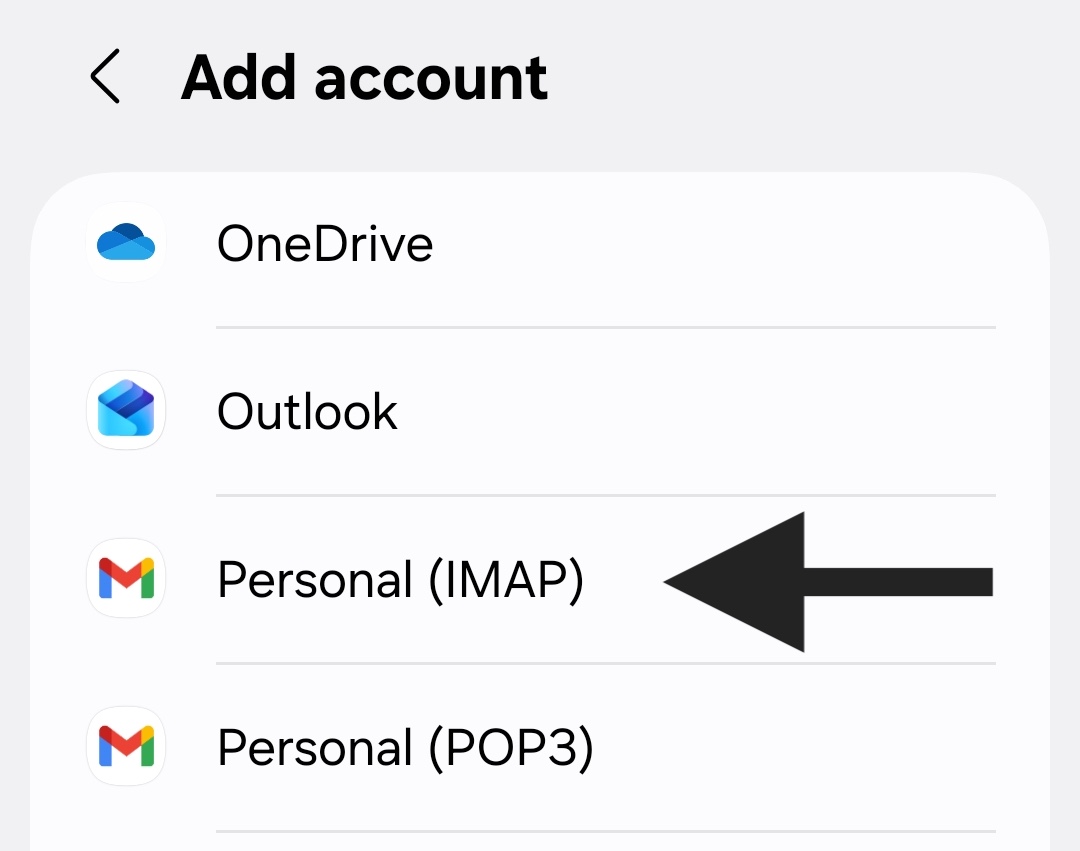
5. Tap Personal (IMAP) as shown below
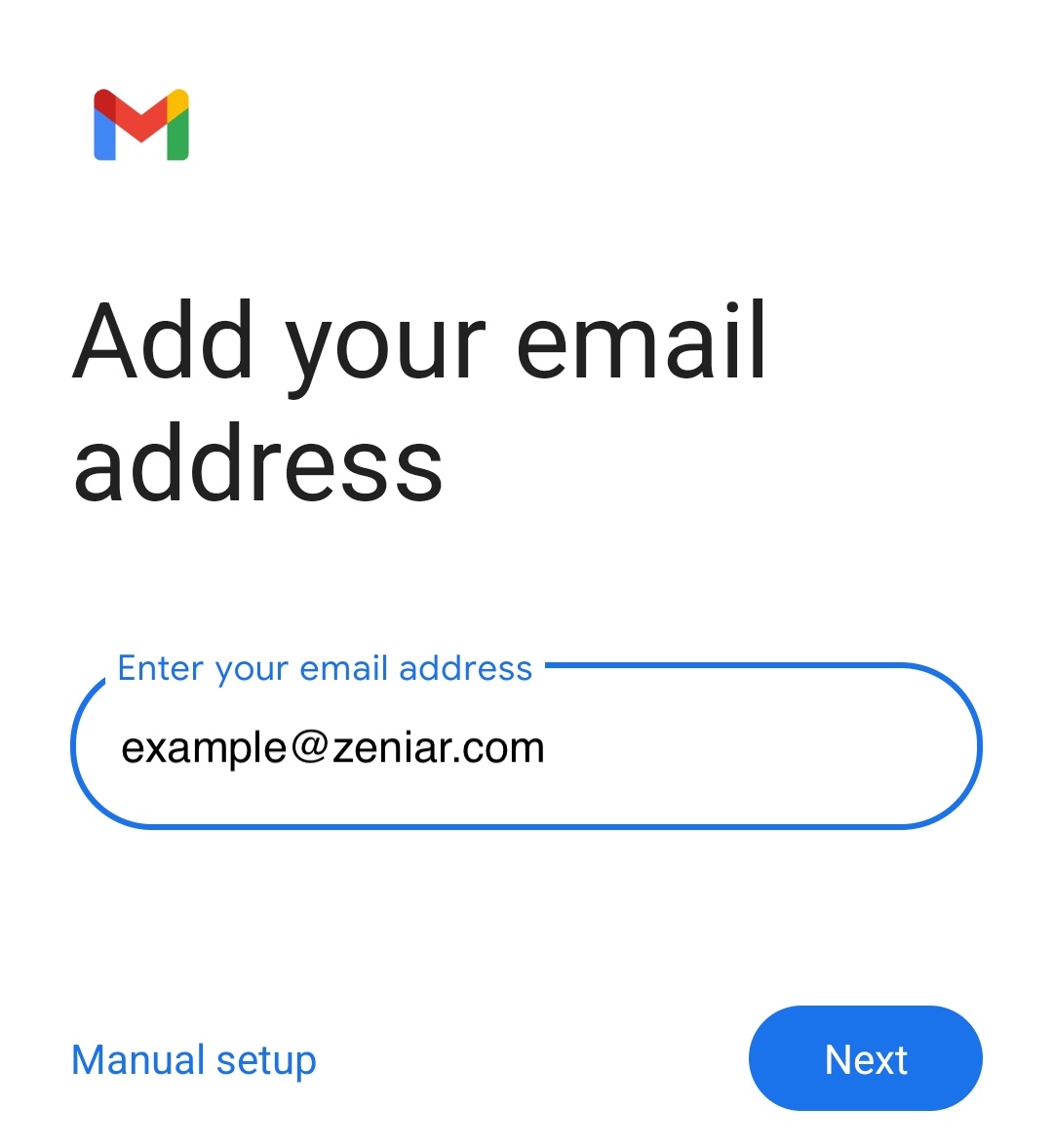
6. Enter your email address
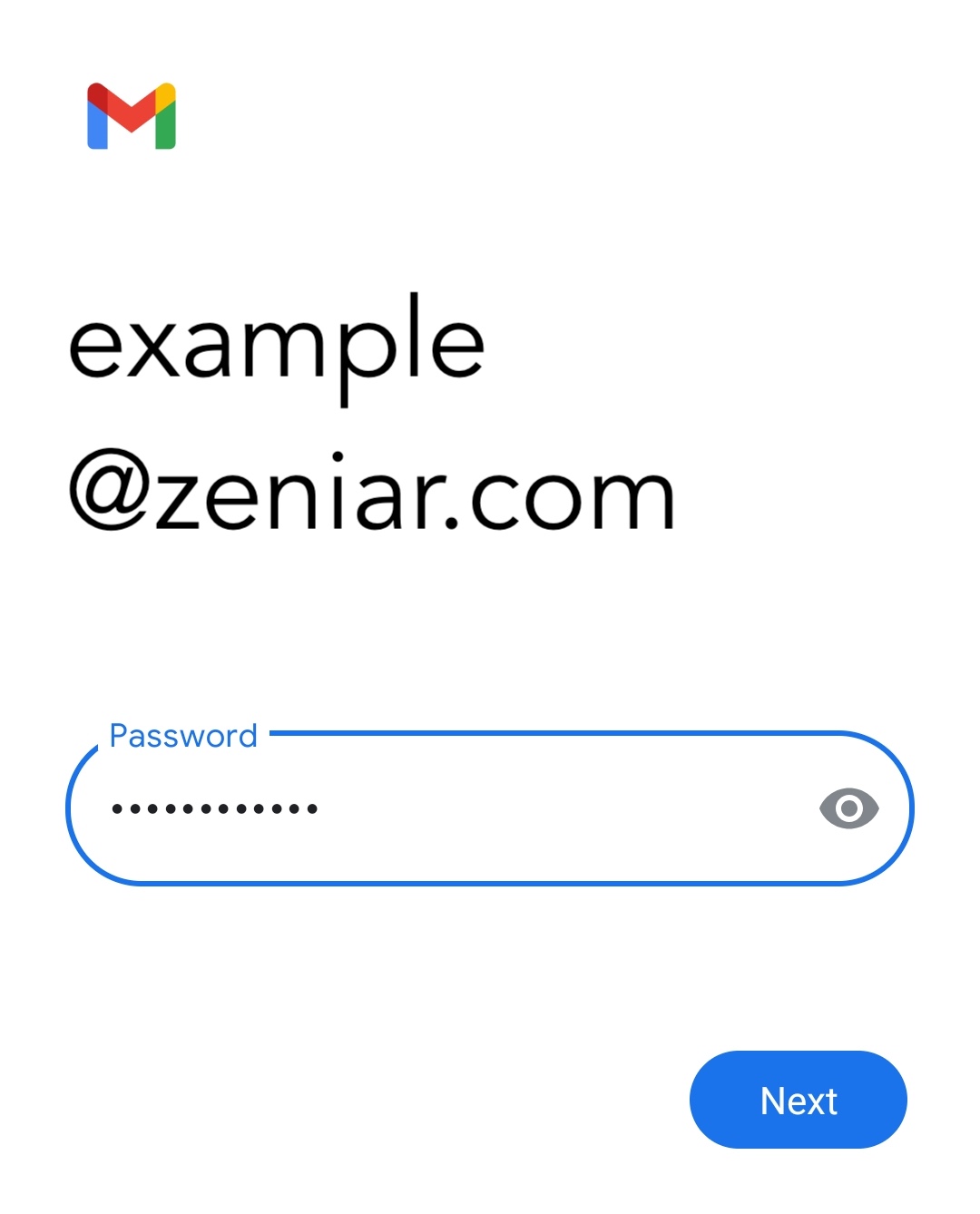
7. Enter your email password
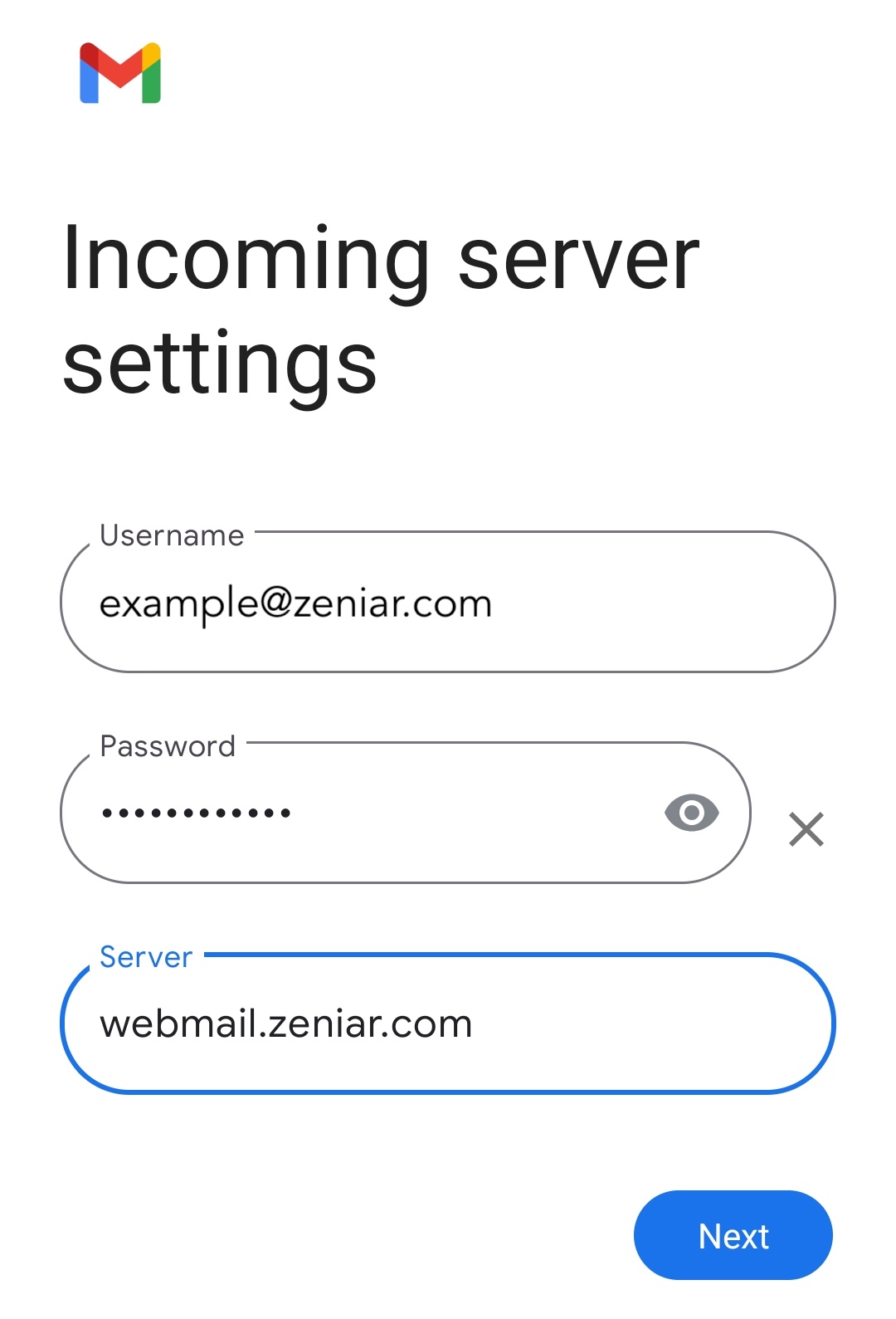
8. Under Incoming server settings change the server to webmail.zeniar.com as shown below
9. Under Outgoing server settings change the server to webmail.zeniar.com as shown below
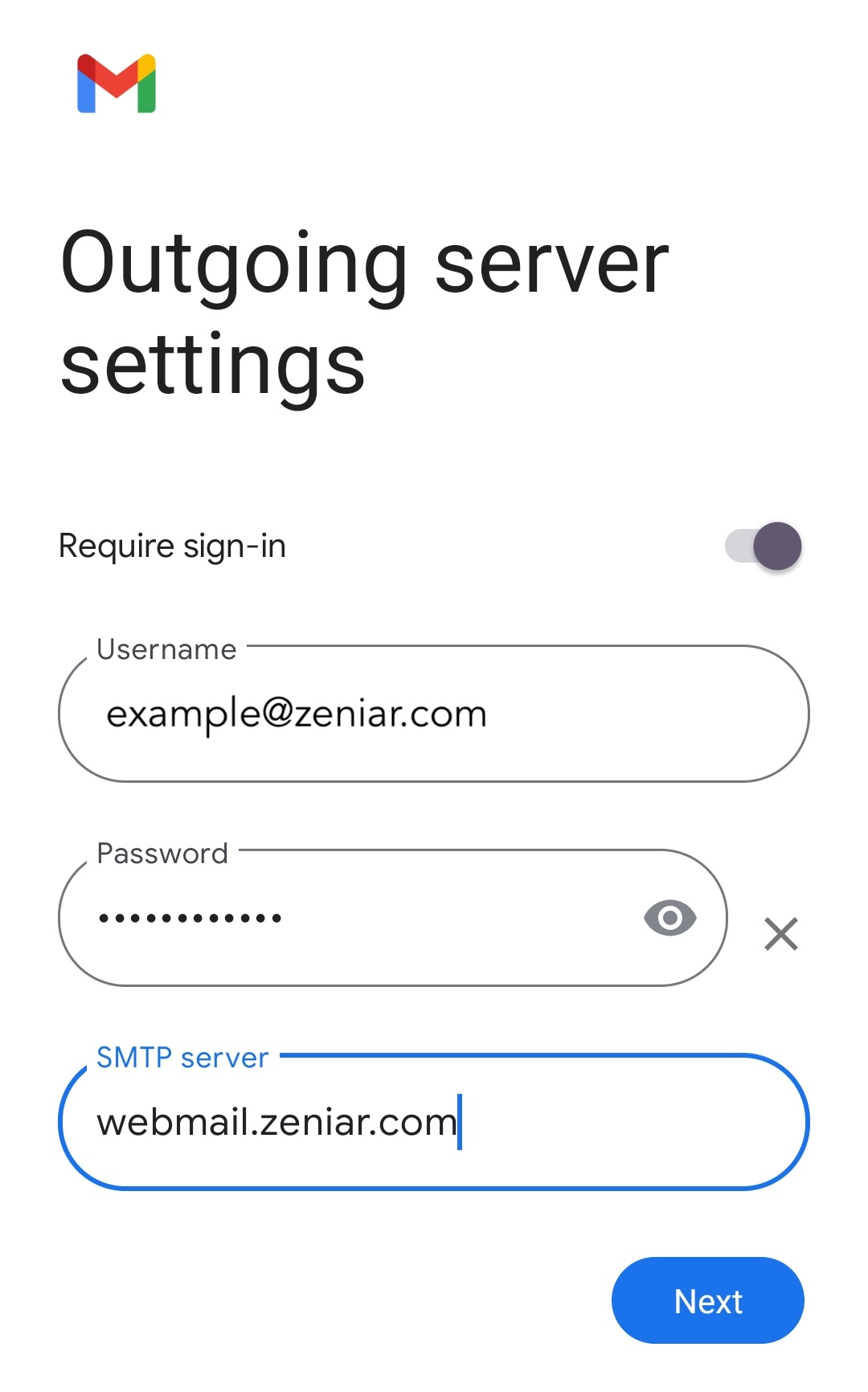
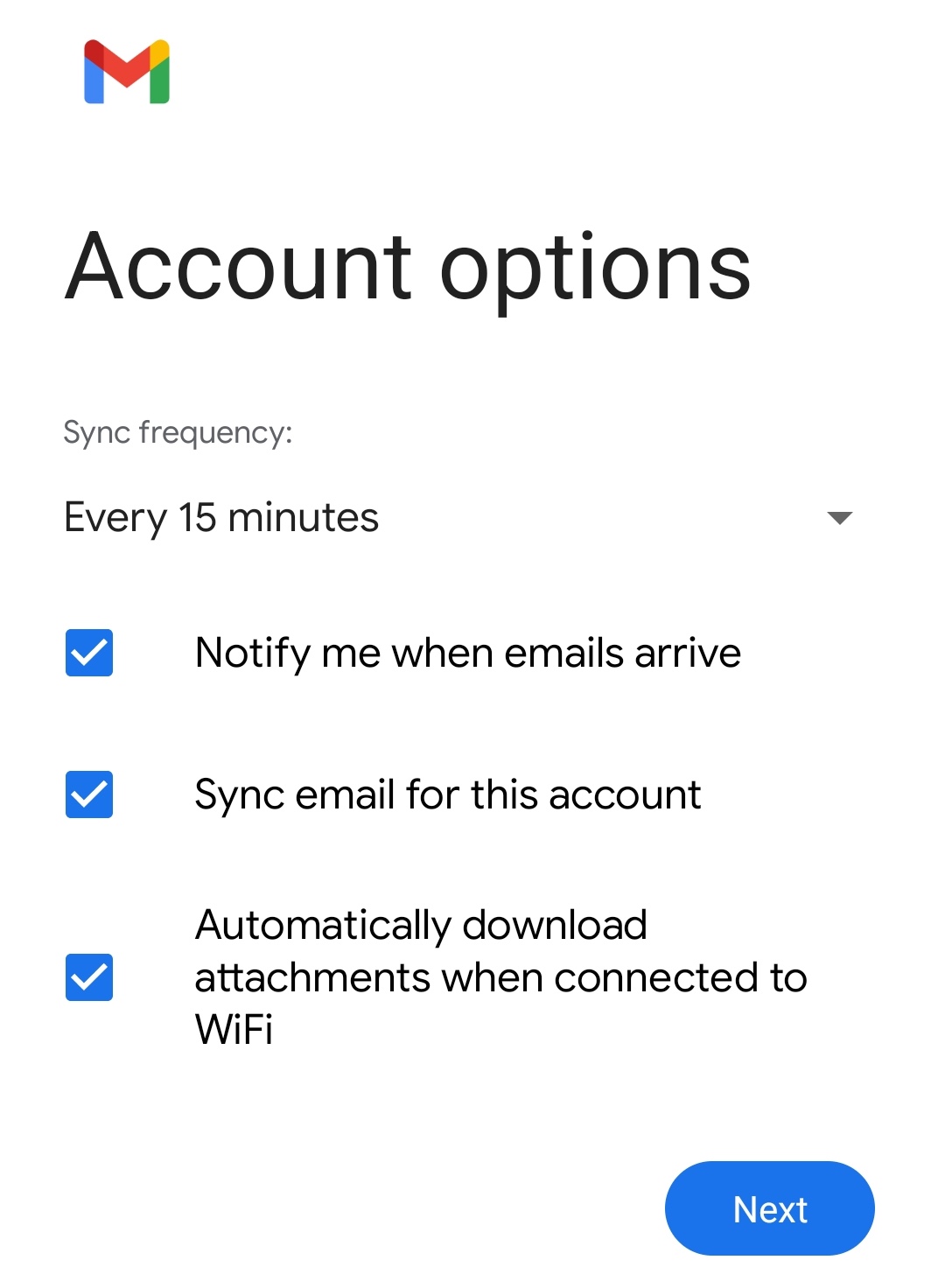
10. Click Next for Account Options
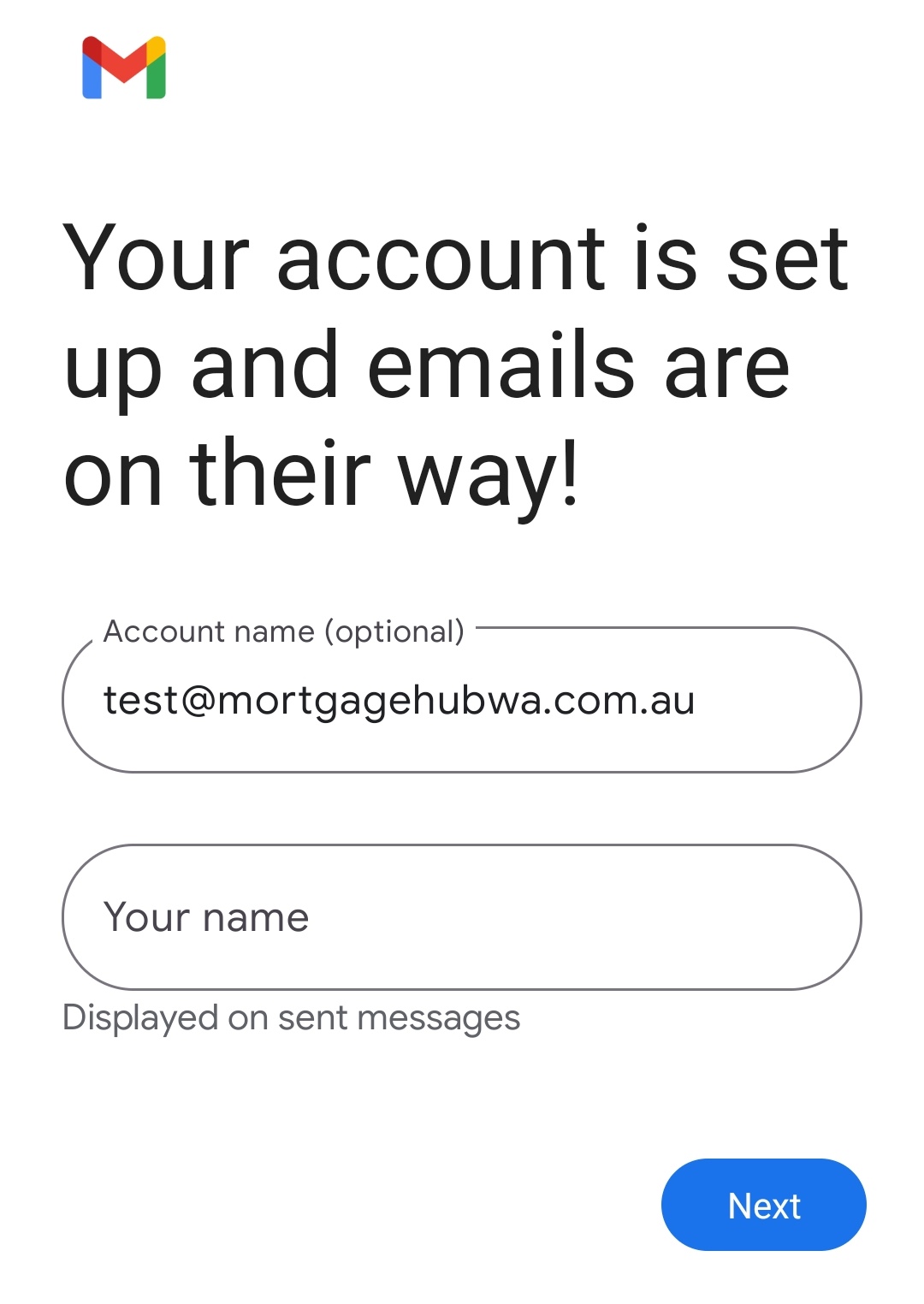
11. Set your display name and click Next
12. Open Gmail on your device to access your email
Require additional assistance?
Our dedicated Australian support team is ready to help. Reach out to us via email at support@zeniar.com or by submitting a support ticket through your Zeniar Portal.